Welcome Contact on +91-22-4155 7000

Enter the following URL as below into your internet browser:

You will see the login screen as below:

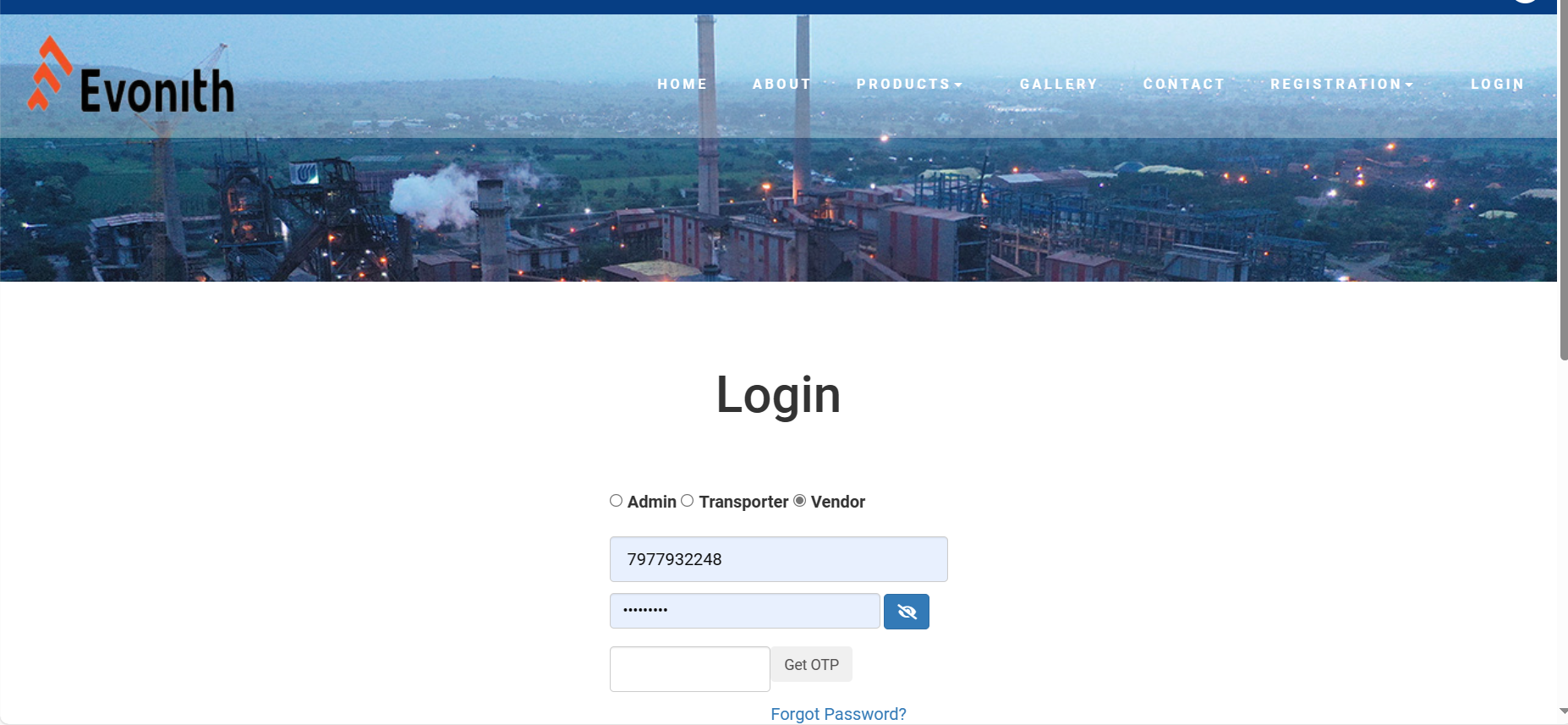
Click on the login link on the top right hand corner. You will see the screen as below:

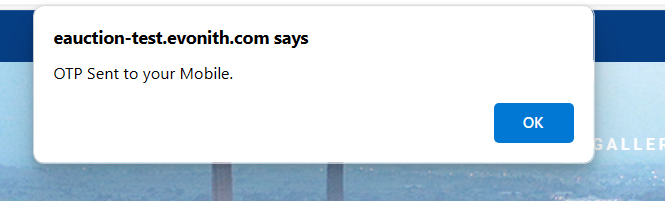
Please select Vendor and enter your mobile number as the user id and the password provided by Evonith team, click on Get OTP. OTP will be sent to your registered mobile number with the following message as shown in next page.

Enter the OTP and click the login button.
If you get the below message as shown below. Please follow the below method checks as mentioned below:
Check the mobile number and password entered once again. To check the password, click on the eye blue image to see your password. See below:

· Alternatively If you do not remember your password, click on the forget password link. This will send you your password via email, post that you can reset your password and OTP as mentioned above and try logging in.
· If you get the below undefined message or “page not found message, please check you have adequate internet connectivity.
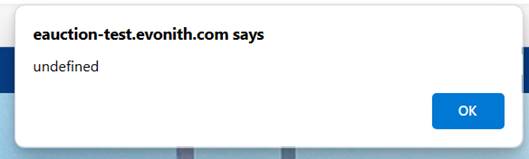
· If it still does not work, please reach out to Evonith IT team /Business team for them to check if you are registered and approved in the system.
· If the internet is working, login details are correct and registered with Evonith, and still not working, please send an email at techish@evonith.com for them to check your login issues from a technical point. Alternatively, please reach out at 7977932248. You may directly get connected to us but please do ensure that you have checked all the above points thoroughly.

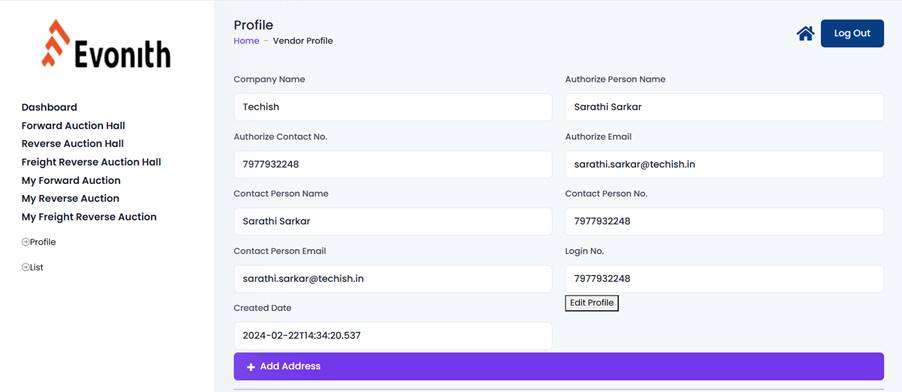
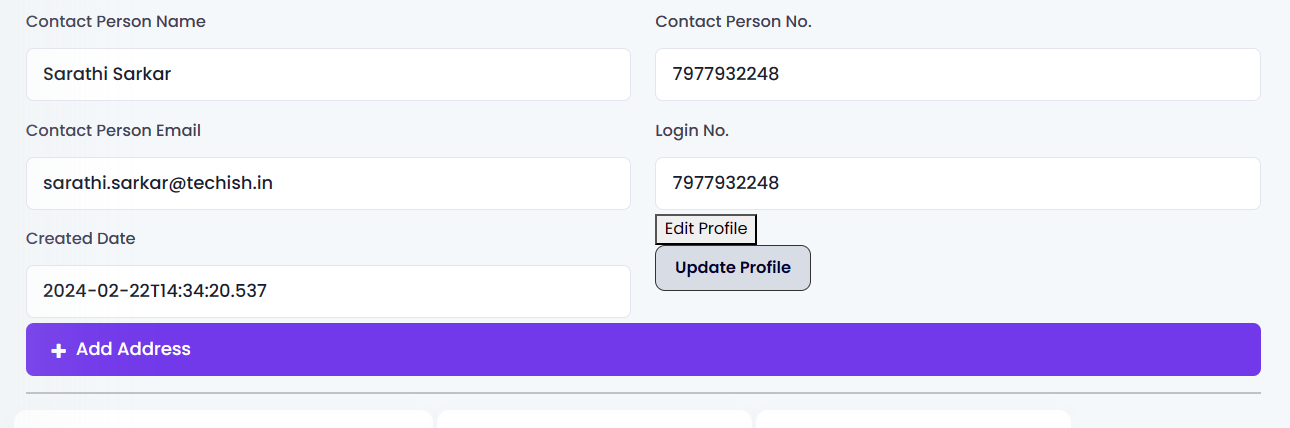
Once you login to the e-auction webpage, your first login will show you your profile details wherein you can update the same. To update, click on the field, make the changes, and then click on Edit Profile button and select the option “Update Profile”. See below:

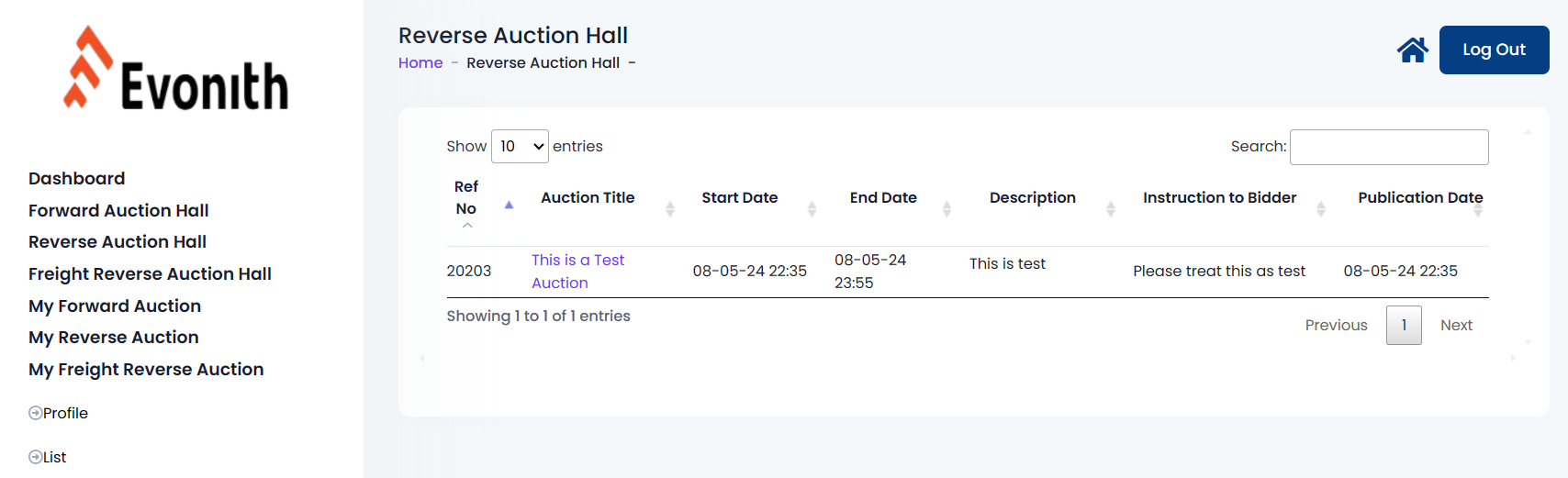
The dashboard screen, please click on Reverse auction hall menu to see the auction and start bidding. Click on the auction name as shown in blue.
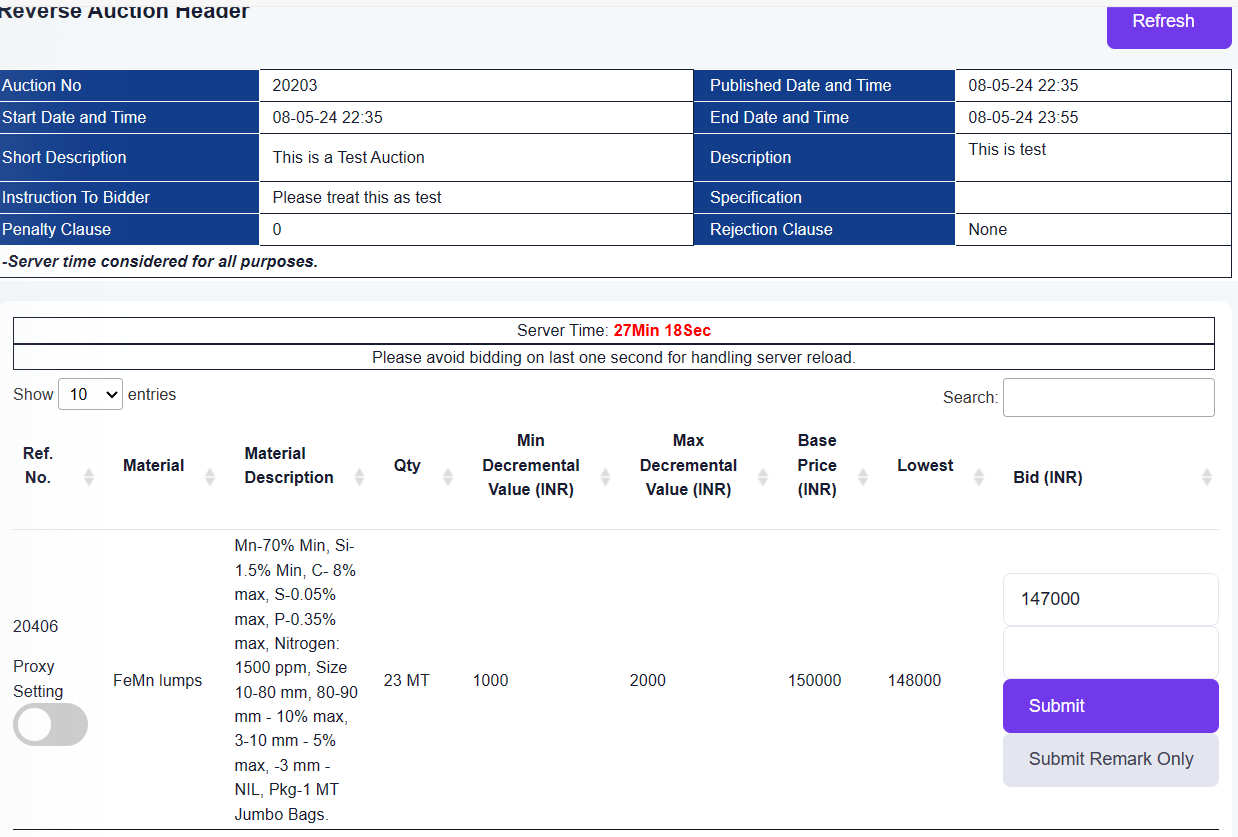
Once clicked, your screen will change for auction bidding as shown below:
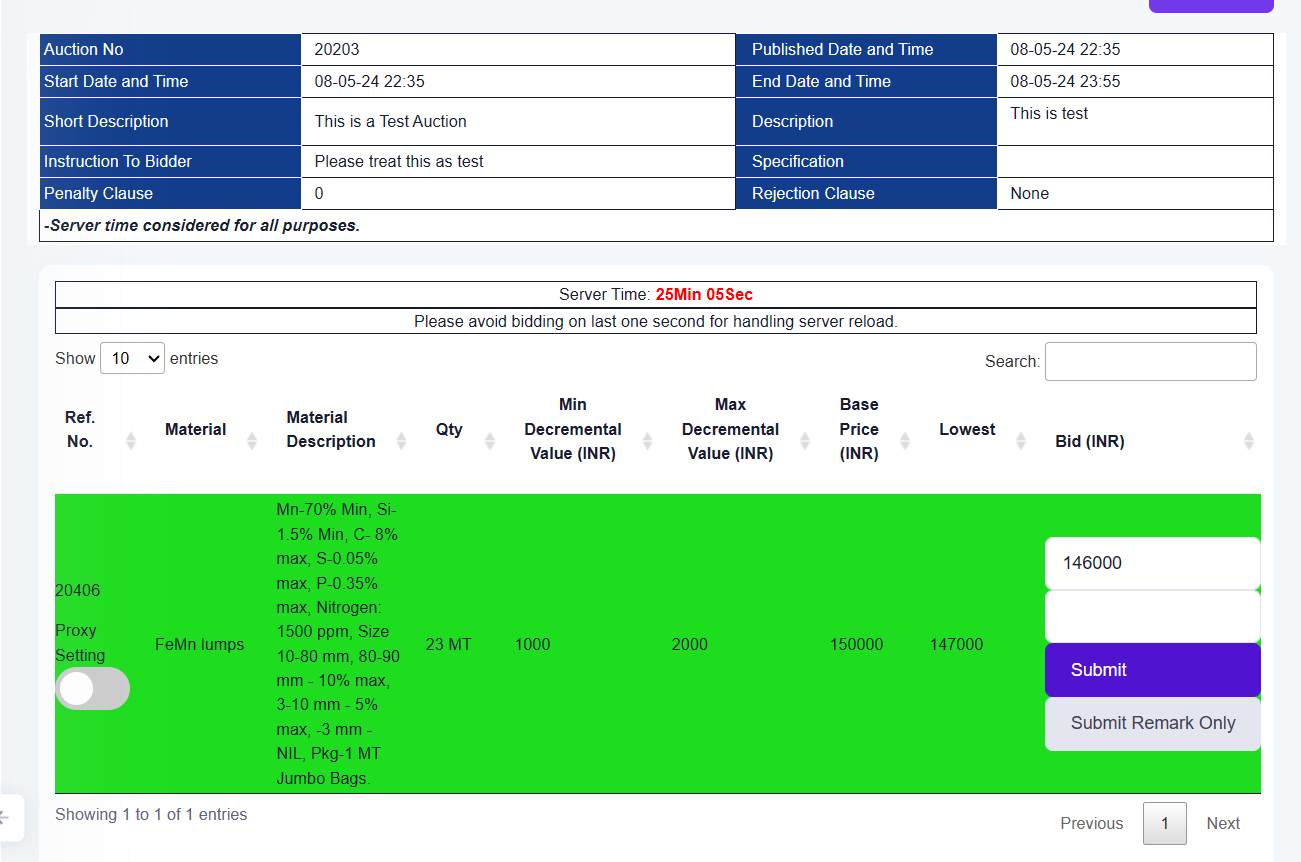
The BID text box shows you the next lowest auction available for bidding, If you submit the same by clicking the button, you will stand as the lowest bidder incase of reverse auction. See below:
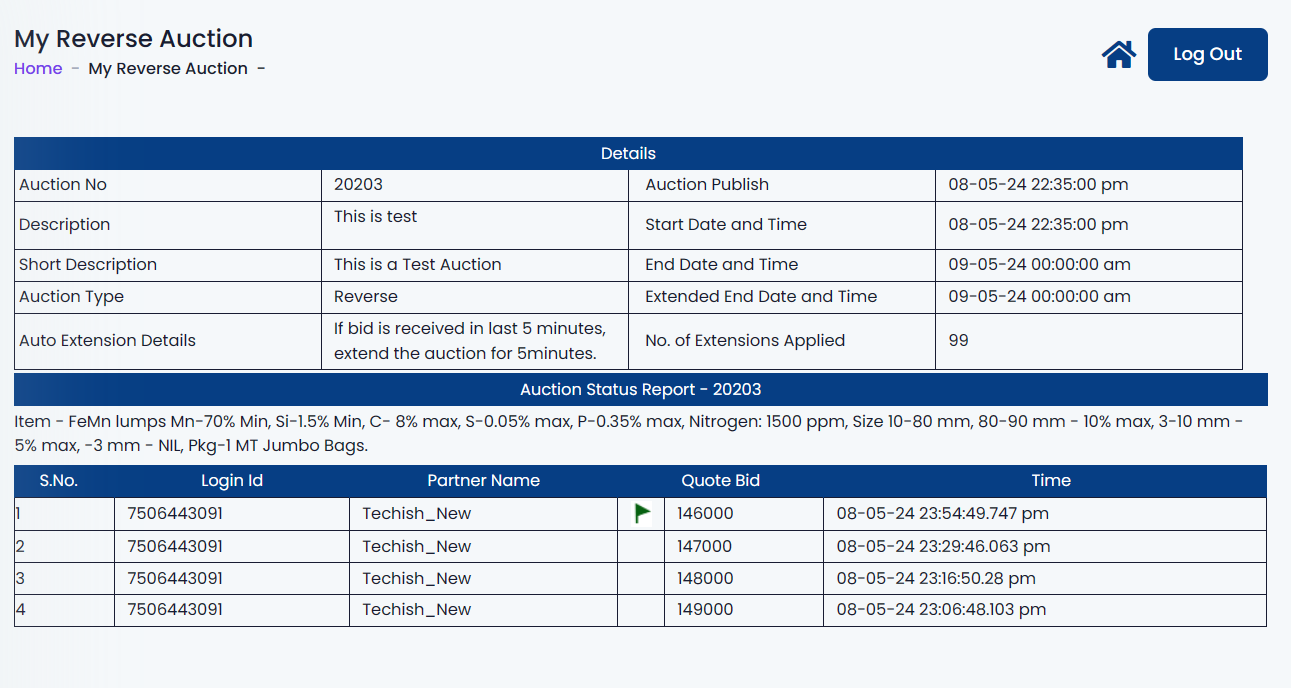
The green colour makes you the lowest bidder. If the color changes to white, it will mean that you are not the lowest bidder. Enjoy the bidding. Once the auction is over, you will be notified/you can check the same by clicking the menu option my reverse auction. You will be able to see your data inputs as below:
The green flag identifier is the L1 bidder and wins the auction.[]
Certain guidelines you will need to follow as below before starting any auction. Please see below:

• Please ensure that you have a good internet speed (Min 2 Mbps) and using internet explorer or chrome as the preferred latest version browser.
• Please avoid bidding on last one second for handling server reload.
• In case of any technical issues, please email the same at techish@evonith.com